
If you’re seeing recurring charges from an app or service you barely use, you’re not alone. The good news: you can cancel a Google Play Store subscription in just a few steps—as long as you know where to look and which Google account you used.
This guide walks you through:
-
How to cancel a subscription on Android and on the web
-
What happens after you cancel
-
How to handle free trials, refunds, and missing subscriptions
-
Extra tips to avoid future unwanted charges
1. Quick answer: how to cancel a Google Play subscription
The short version:
-
Open Google Play Store.
-
Tap your profile icon (top-right).
-
Go to Payments & subscriptions → Subscriptions.
-
Select the subscription you want to stop.
-
Tap Cancel subscription and confirm.
You’ll usually keep access until the end of the period you already paid for, and you won’t be charged again, unless you resubscribe later. Ayuda de Google+1
Uninstalling the app does not cancel the subscription.
2. How Google Play subscriptions work (so you don’t get surprised)
Before cancelling, it helps to understand some basics:
-
Auto-renewal by default
Subscriptions renew automatically at the end of each billing period (weekly, monthly, yearly, etc.), unless you cancel. Ayuda de Google -
Cancellation stops future renewals, not current access
When you cancel, you normally keep access until the end of the current billing period. Example: you buy a one-year plan on January 1, cancel on July 1, but still have access until December 31. Ayuda de Google -
Uninstalling an app does NOT cancel billing
Many people remove the app and assume the charges will stop. That’s a common mistake: Google clearly states you must cancel the subscription separately. Ayuda de Google+1 -
Prepaid plans vs subscriptions
Some plans are prepaid for a fixed time and simply expire; you don’t need to cancel them. If unused, they may qualify for a refund depending on the policy. Ayuda de Google -
Some apps also offer in-app cancellation
Google requires that developers give users a clear way to cancel, often via a deep link to the Play Store subscription page. Android Developers
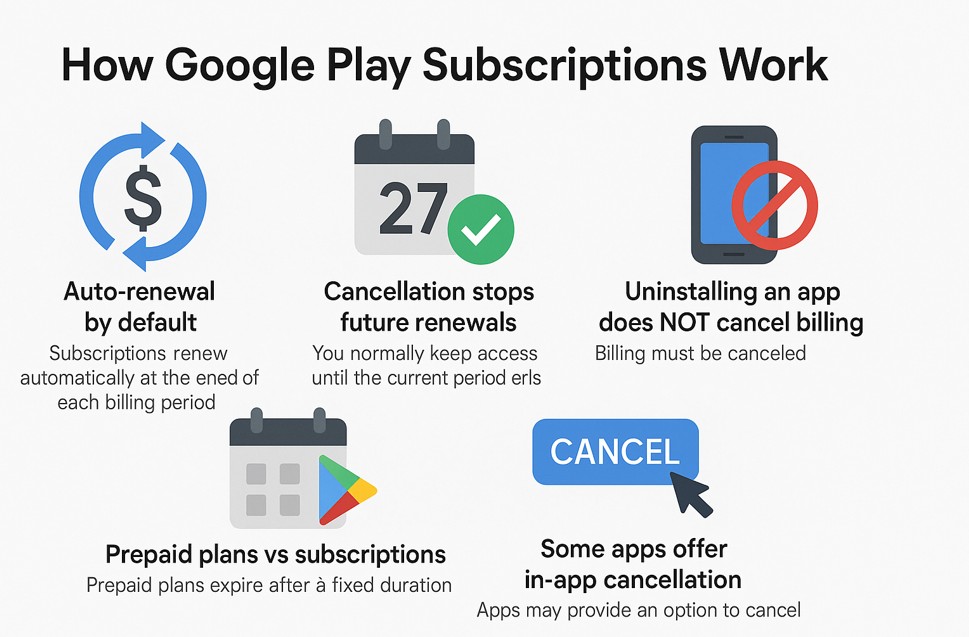
Knowing this prevents surprises like “I cancelled but still have access” or “I deleted the app, why am I still being charged?”
3. Cancel a Google Play subscription on Android
This is the most common method and works on phones and tablets.
Step-by-step:
-
Open the Google Play Store app
On your Android phone or tablet, open the Play Store. -
Check the right Google account
Tap your profile icon in the top-right corner and make sure you’re signed in with the account that originally bought the subscription. Many people have multiple Google accounts and pick the wrong one. Ayuda de Google+1 -
Go to Payments & subscriptions → Subscriptions
-
Tap Payments & subscriptions
-
Tap Subscriptions to see your active and expired subscriptions. Ayuda de Google+1
-
-
Select the subscription you want to cancel
Tap the subscription (for example, a streaming app or a cloud storage plan). -
Tap Cancel subscription
-
Follow the prompts.
-
You may need to pick a reason for cancelling (optional but often required to continue). help.rocketmoney.com+1
-
-
Confirm
Read the confirmation screen. It should clearly state that:-
Your subscription is canceled, and
-
You’ll have access until a specific end date.
-
After you cancel on Android
-
You won’t be charged at the next renewal date.
-
You usually keep access until that date. Ayuda de Google
-
The subscription may move to an “expired” or “inactive” section later.
4. Cancel a Google Play subscription on a computer (web/desktop)
If you don’t have your Android device nearby—or you prefer doing it on a bigger screen—you can cancel from any browser.
Steps on play.google.com
-
Visit play.google.com in your browser. Ayuda de Google+1
-
Make sure you’re signed in with the correct Google account (top-right).
-
In the left menu, click My subscriptions. Ayuda de Google+1
-
Find the subscription you want to cancel and click Manage.
-
Click Cancel subscription.
-
Select a reason if asked, then click Continue or Yes to confirm. Ayuda de Google+1
As on Android, you’ll typically keep access until the end of the already-paid term.
5. Special cases: free trials, hidden subscriptions, and family accounts
5.1. Cancel a free trial before you’re charged
Most free trials through Google Play convert to paid subscriptions automatically unless cancelled at least one day before the trial ends.
To avoid surprise charges:
-
Cancel using the same steps as above (Android or web).
-
Make sure you see a cancellation confirmation and a clear “valid until” date. Ayuda de Google+1
Even if you cancel during the trial, you’ll usually keep access until the trial’s original end date.
5.2. “I can’t find my subscription in Google Play”
This is one of the biggest pain points and appears frequently in user forums. For example, users sometimes tap “Manage subscription” in an app (like Disney+) and get sent to Google Play, but no subscription appears in the list. Reddit
If this happens:
-
Check all your Google accounts
If you have more than one Gmail/Google account:-
On Android, switch accounts in the Play Store profile menu.
-
On the web, sign out and sign back in with other possible accounts. Ayuda de Google+1
-
-
Confirm the billing platform
Make sure the subscription was really purchased via Google Play.-
Some services let you subscribe directly with them (e.g., via their website) or via other app stores (Apple App Store, Samsung Galaxy Store, etc.). In that case, the subscription may not appear in Google Play at all.
-
-
Check the app’s account settings
In many apps there is:-
A “Manage subscription” button
-
An “Account” or “Billing” section
This may show you where your subscription is being billed or give you a direct link to manage it.
-
-
Contact the app’s support
If you still don’t find it, contact the app or service’s support team. Provide:-
The email address you think is linked
-
Screenshots of charges (bank statement, Google Play receipt, etc.)
-
5.3. Child and family subscriptions
If a child or a family member uses an app under Google Family and the subscription is billed through the family manager’s account:
-
The family manager (not the child) must cancel the subscription in Google Play.
-
The process is the same, but make sure you’re logged in as the family manager on Play Store.
6. Pausing vs cancelling a subscription
For some subscriptions, Google Play allows you to pause payments instead of fully cancelling. Ayuda de Google+1
You might see options like “Pause payments” when managing a subscription:
-
Pausing is useful if you want a temporary break without losing your plan or promotional pricing.
-
You choose a pause period (for example, one month). Payments and access may be suspended, then automatically resume afterward.
If you’re sure you don’t want to pay again, choose Cancel subscription instead.
7. Refunds: can you get your money back?
Cancelling a subscription does not automatically refund past payments.
When you might get a refund
Google Play has a refund policy that can allow refunds in some circumstances, such as accidental purchases or issues with the product. Ayuda de Google
-
For recent charges, you may be able to request a refund directly from Google Play.
-
For older charges, or services heavily used, refunds are less likely but you can still try.
To learn about eligibility and request a refund, visit Google Play’s “Refunds” help pages (linked from the subscription support article). Ayuda de Google
What about unused prepaid plans?
If you bought a prepaid subscription and haven’t used it, Google indicates you may be able to cancel and request a refund—again, depending on the policy. Ayuda de Google
8. Best practices to avoid unwanted Google Play charges
To stay in control of your subscriptions:
-
Review “Subscriptions” regularly
Once a month, open Play Store → profile → Payments & subscriptions → Subscriptions and audit what you’re paying for. Ayuda de Google+1 -
Use one primary Google account for purchases
This makes it much easier to track apps, purchases, and subscriptions. -
Set reminders for free trials
If you sign up for a trial, immediately add a calendar reminder a few days before the trial ends so you can decide whether to keep or cancel. -
Keep confirmation emails or screenshots
When you subscribe or cancel, save:-
Order confirmation emails from Google Play
-
Screenshots of the cancellation confirmation
These help if you ever need to dispute a charge.
-
-
Watch for duplicate subscriptions
Some people unknowingly sign up for the same service twice, for example:-
Once via Google Play
-
Once directly on the website with a credit card
If you see duplicate charges, check both your Play Store subscriptions and the service’s own billing page.
-
9. FAQ: Google Play subscription cancellation
Q1. If I cancel today, will I lose access immediately?
Usually no. You keep access to your subscription until the end of the period you’ve already paid for. It simply won’t renew automatically. Ayuda de Google
Q2. Is uninstalling the app enough to stop charges?
No. Uninstalling does not cancel the subscription. You must cancel it in Google Play (Android app or web) using the steps above. Ayuda de Google+1
Q3. I can’t see my subscription under “Subscriptions”. What do I do?
-
Check all your Google accounts.
-
Confirm the service was really billed through Google Play.
-
Use the app’s account or billing section to see where it’s managed.
-
Contact the app’s support if you still can’t find it. Reddit
Q4. Can I restart a subscription after cancelling?
In many cases yes: some subscriptions show a “Resubscribe” button in Google Play. If not, you can usually buy the subscription again from the app or Play Store listing. Ayuda de Google+1
Q5. How do I change the payment method for a subscription instead of cancelling it?
On the web:
-
Go to play.google.com → My subscriptions.
-
Click Manage next to your subscription.
-
Click Update next to the primary payment method and follow the prompts. Ayuda de Google+1
10. Final checklist: “Google Play Store subscription cancel”
If your goal is simply to stop being billed, here’s the checklist:
-
Open Google Play (Android app or play.google.com).
-
Confirm you’re using the correct Google account.
-
Go to Payments & subscriptions → Subscriptions (or My subscriptions on the web).
-
Select the subscription you want to stop and tap/click Cancel subscription.
-
Confirm the cancellation and note the access end date.
-
Optional: take a screenshot of the confirmation.
-
Later, verify that no new charges appear after that date.
Follow these steps and you’ll successfully cancel your Google Play Store subscription without guesswork or hidden traps.